Understanding HTML Tags and Elements: A Complete Beginner's Guide
Learn the fundamentals of HTML tags and elements. Understand opening tags, closing tags, void elements, block vs inline elements, and commonly used HTML tags with practical examples.
10 min read
Share
- What is HTML?
- A Simple HTML Example
- What is an HTML Tag?
- Tag Syntax
- What is an HTML Element?
- Visual Breakdown
- Example
- Self-Closing (Void) Elements
- Common Void Elements
- Syntax
- Why No Closing Tag?
- Block-Level vs Inline Elements
- Block-Level Elements
- Common Block Elements
- Inline Elements
- Common Inline Elements
- Side-by-Side Comparison
- Commonly Used HTML Tags
- Headings: `<h1>` to `<h6>`
- Paragraphs: `<p>`
- Links: `<a>`
- Images: `<img>`
- Divs and Spans
- Lists
- Nesting Elements
- Nesting Rules
- Adding Attributes
- Common Attributes
- Example
- Inspecting HTML in the Browser
- How to Open DevTools
- What You Can Do
- Complete Example
- Quick Reference
- Key Takeaways
- What's Next?
Every website you've ever visited is built with HTML. It's the foundation – the skeleton that gives structure to web pages.
But what exactly are HTML tags and elements? And why do developers keep using these terms interchangeably (even though they're different)?
Let's break it down.
What is HTML?
HTML stands for HyperText Markup Language. It's not a programming language – it's a markup language that tells browsers how to structure content.
Think of it like this
If a website were a house:
- HTML = The structure (walls, rooms, foundation)
- CSS = The decoration (paint, furniture, style)
- JavaScript = The functionality (electricity, plumbing, automation)
Without HTML, there would be no headings, paragraphs, images, or links. Just a wall of text.
A Simple HTML Example
<!DOCTYPE html>
<html>
  <head>
    <title>My First Page</title>
  </head>
  <body>
    <h1>Hello World!</h1>
    <p>This is my first webpage.</p>
  </body>
</html>
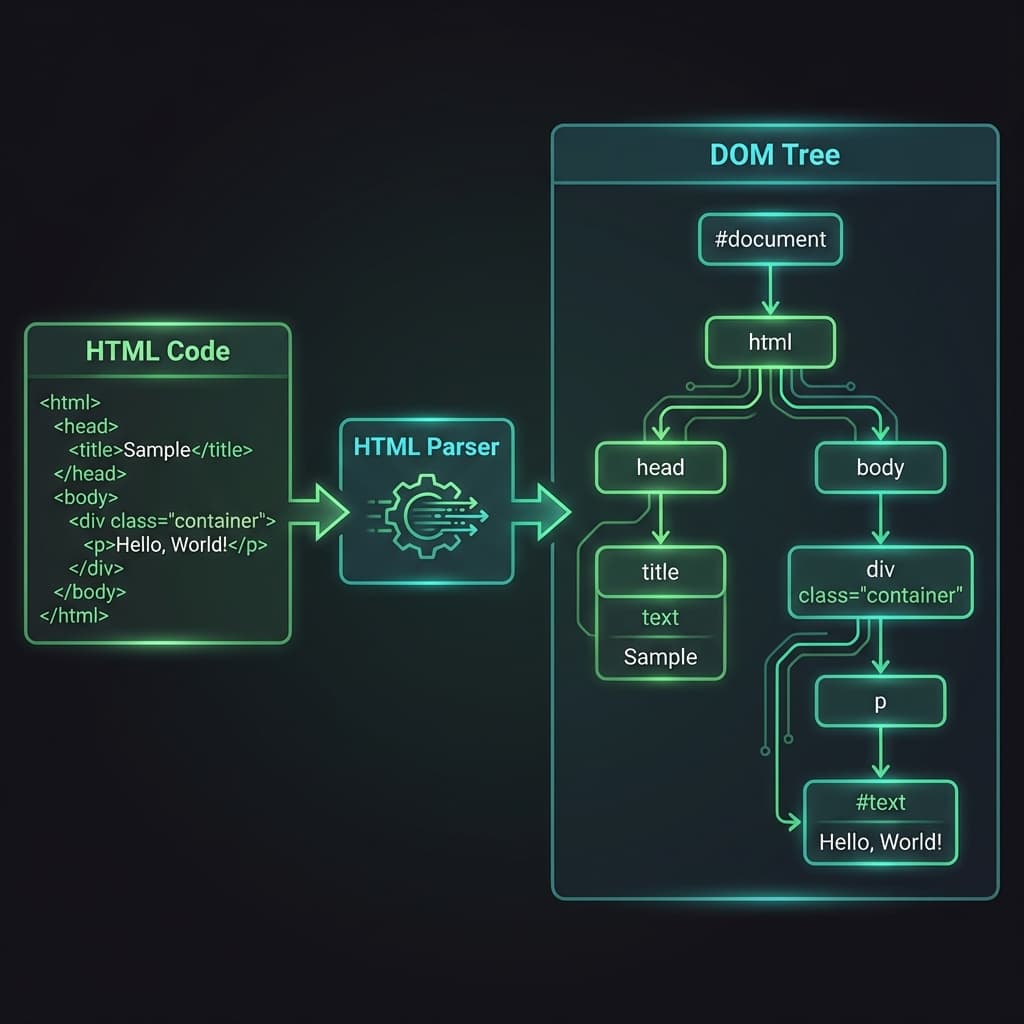
How HTML becomes DOM - the browser parses HTML into a structured tree
What is an HTML Tag?
A tag is a keyword surrounded by angle brackets that tells the browser what type of content follows.
Tag Syntax
<tagname>
Tags usually come in pairs:
| Type | Example | Purpose |
|---|---|---|
| Opening Tag | <p> | Starts the element |
| Closing Tag | </p> | Ends the element |
Spot the difference
Closing tags have a forward slash (/) before the tag name: </p>
What is an HTML Element?
Here's where it gets important. An element is the complete package:
Element = Opening Tag + Content + Closing Tag
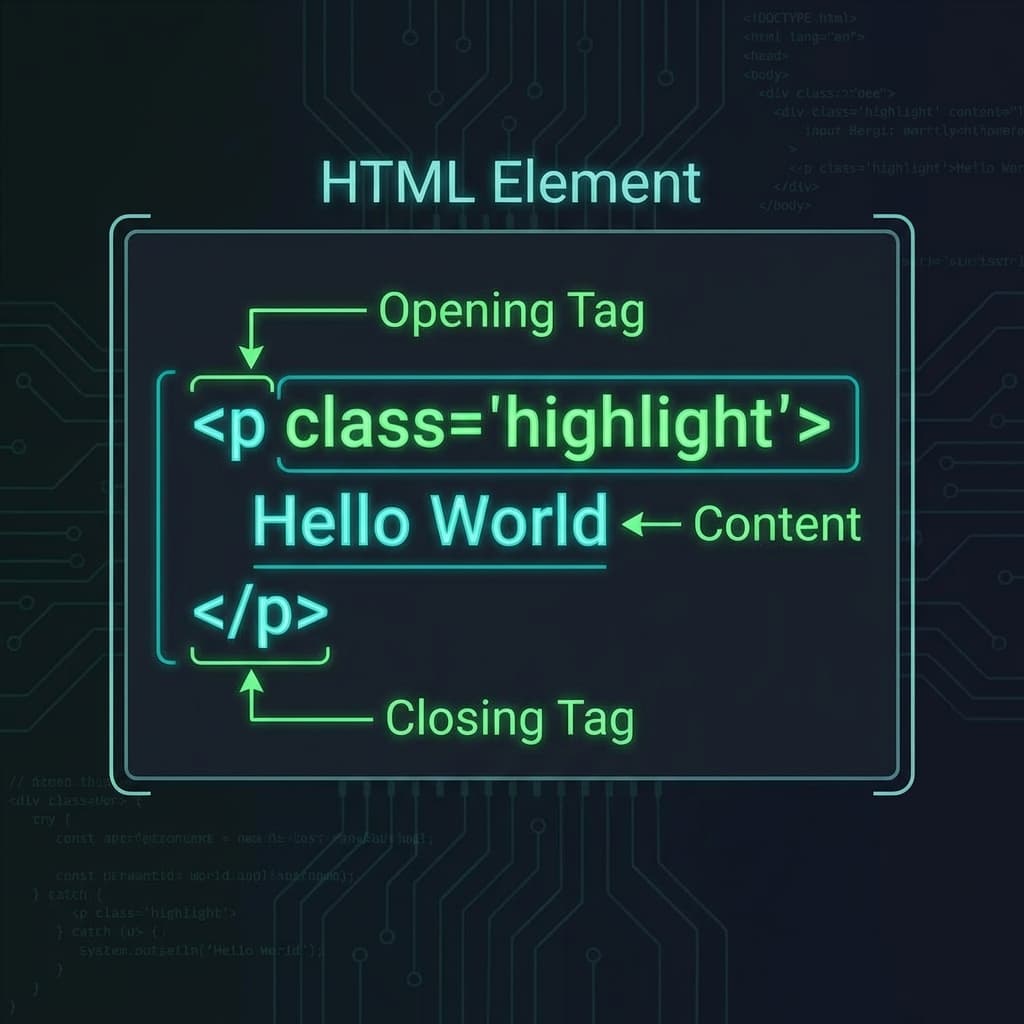 HTML Element breakdown showing opening tag, content, and closing tag
Visual Breakdown
┌─────────────────────────────────────┐
│           HTML ELEMENT              │
├─────────────────────────────────────┤
│                                     │
│   <p>    Hello World!    </p>       │
│    ↑          ↑           ↑         │
│ Opening    Content     Closing      │
│   Tag                    Tag        │
│                                     │
└─────────────────────────────────────┘
Example
<h1>Welcome to My Site</h1>
| Part | Value |
|---|---|
| Opening Tag | <h1> |
| Content | Welcome to My Site |
| Closing Tag | </h1> |
| Complete Element | <h1>Welcome to My Site</h1> |
Tag vs Element
Tag = Just the brackets and name (<p>)
Element = The whole thing including content (<p>Hello</p>)
Most developers use these terms interchangeably, but now you know the difference!
See where a tag stops being text and becomes a node:
1/3
Self-Closing (Void) Elements
Some elements don't have content or closing tags. These are called void elements or self-closing elements.
Common Void Elements
| Element | Purpose |
|---|---|
<img> | Display an image |
<br> | Line break |
<hr> | Horizontal rule (line) |
<input> | Form input field |
<meta> | Metadata |
<link> | Link external resources |
Syntax
<!-- Both are valid -->
<img src="photo.jpg" alt="A photo">
<img src="photo.jpg" alt="A photo" />

<br>
<br />
Info
In HTML5, the trailing slash (/>) is optional. Both <br> and <br /> are valid.
Why No Closing Tag?
Void elements can't contain content. An image is an image – there's no text "inside" it. Same with a line break.
Block-Level vs Inline Elements
This is crucial for understanding how elements behave on a page.
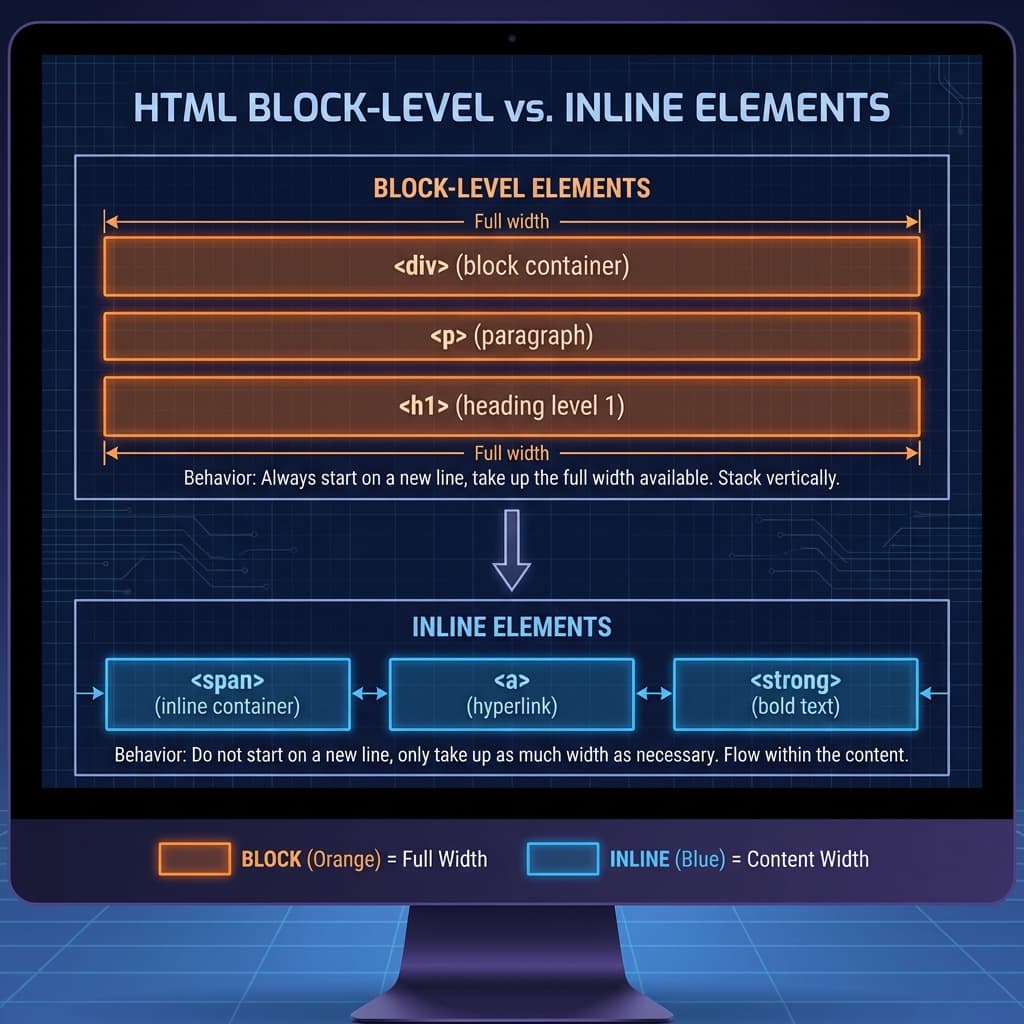 Block-level vs Inline HTML elements comparison
Block-Level Elements
Block elements:
- Start on a new line
- Take up the full width available
- Stack vertically
┌─────────────────────────────────────┐
│              <div>                   │
│         (full width block)           │
└─────────────────────────────────────┘
┌─────────────────────────────────────┐
│               <p>                    │
│         (full width block)           │
└─────────────────────────────────────┘
┌─────────────────────────────────────┐
│              <h1>                    │
│         (full width block)           │
└─────────────────────────────────────┘
Common Block Elements
| Element | Purpose |
|---|---|
<div> | Generic container |
<p> | Paragraph |
<h1> to <h6> | Headings |
<ul>, <ol> | Lists |
<section> | Page section |
<article> | Article content |
<header> | Page/section header |
<footer> | Page/section footer |
Inline Elements
Inline elements:
- Do NOT start on a new line
- Only take up as much width as needed
- Sit side by side
┌─────────────────────────────────────┐
│ <span>text</span> <a>link</a> <strong>bold</strong> │
│     ↑               ↑             ↑     │
│   inline          inline        inline  │
└─────────────────────────────────────┘
Common Inline Elements
| Element | Purpose |
|---|---|
<span> | Generic inline container |
<a> | Hyperlink |
<strong> | Bold (important) text |
<em> | Italic (emphasized) text |
<img> | Image (inline by default) |
<code> | Code snippet |
<br> | Line break |
Side-by-Side Comparison
| Feature | Block | Inline |
|---|---|---|
| New line? | Yes | No |
| Width | Full available | Content only |
| Can contain | Block & Inline | Inline only |
| Example | <div>, <p> | <span>, <a> |
Commonly Used HTML Tags
Let's go through the tags you'll use every day:
Headings: <h1> to <h6>
<h1>Main Title (Largest)</h1>
<h2>Section Title</h2>
<h3>Subsection Title</h3>
<h4>Smaller Heading</h4>
<h5>Even Smaller</h5>
<h6>Smallest Heading</h6>
SEO Tip
Use only one <h1> per page (your main title). Use <h2> to <h6> for subsections in order.
Paragraphs: <p>
<p>This is a paragraph of text. It can contain multiple sentences.</p>
<p>This is another paragraph. Each paragraph gets its own space.</p>
Links: <a>
<a href="https://google.com">Visit Google</a>
<a href="/about">About Page</a>
<a href="#section">Jump to Section</a>
Images: <img>
<img src="photo.jpg" alt="Description of the photo">
Always add alt text
The alt attribute is crucial for accessibility and SEO. Describe what the image shows.
Divs and Spans
<!-- Block container -->
<div class="container">
  <p>Content inside a div</p>
</div>

<!-- Inline container -->
<p>This is <span class="highlight">highlighted</span> text.</p>
Lists
<!-- Unordered list (bullets) -->
<ul>
  <li>Item 1</li>
  <li>Item 2</li>
  <li>Item 3</li>
</ul>

<!-- Ordered list (numbers) -->
<ol>
  <li>First step</li>
  <li>Second step</li>
  <li>Third step</li>
</ol>
Nesting Elements
Elements can be nested inside each other:
<div class="card">
  <h2>Card Title</h2>
  <p>Card description with <strong>bold text</strong> inside.</p>
  <a href="#">Read More</a>
</div>
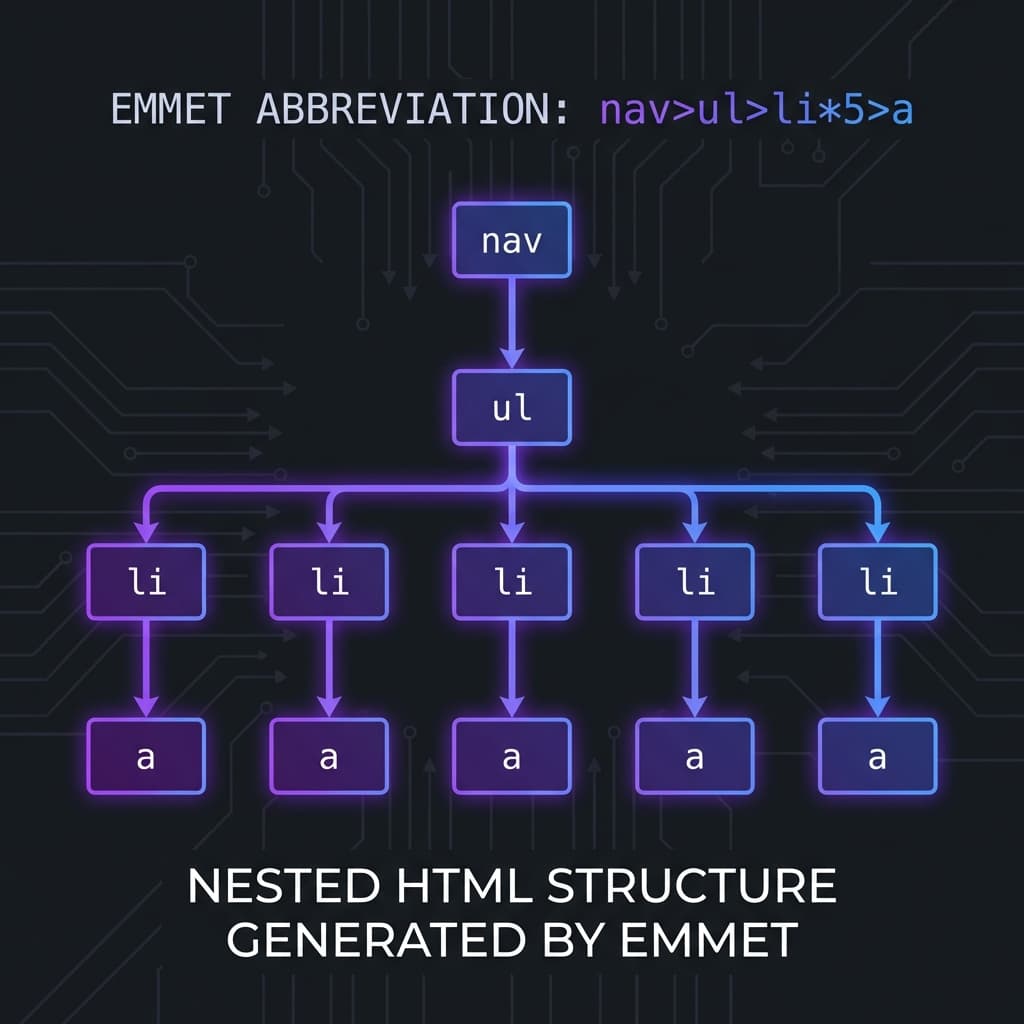 Nested HTML structure showing parent-child relationships
Nesting Rules
- Close tags in reverse order (last opened = first closed)
- Block elements can contain block and inline elements
- Inline elements should only contain inline elements
<!-- ✅ Correct nesting -->
<p>This is <strong>correct</strong> nesting.</p>

<!-- ❌ Wrong - tags overlap -->
<p>This is <strong>wrong</p></strong>

<!-- ❌ Wrong - paragraph inside span -->
<span><p>Invalid nesting</p></span>
Adding Attributes
Attributes provide extra information about elements:
<tagname attribute="value">Content</tagname>
Common Attributes
| Attribute | Used On | Purpose |
|---|---|---|
class | Any | CSS styling hook |
id | Any | Unique identifier |
href | <a> | Link destination |
src | <img> | Image source |
alt | <img> | Alternative text |
type | <input> | Input type |
style | Any | Inline CSS |
Example
<a href="https://example.com" class="btn" id="main-cta">
  Click Me
</a>

<img src="logo.png" alt="Company Logo" class="logo" id="header-logo">
Inspecting HTML in the Browser
Want to see HTML in action? Use DevTools!
How to Open DevTools
| Browser | Shortcut |
|---|---|
| Chrome | F12 or Ctrl+Shift+I |
| Firefox | F12 or Ctrl+Shift+I |
| Safari | Cmd+Opt+I |
| Edge | F12 or Ctrl+Shift+I |
What You Can Do
- Inspect elements – Click on any element to see its HTML
- Edit HTML live – Double-click to modify text
- View structure – See how elements are nested
- Debug issues – Find why styling isn't working
Pro Tip
Right-click any element on a webpage and select "Inspect" to jump directly to its HTML in DevTools.
Complete Example
Let's put it all together:
<!DOCTYPE html>
<html lang="en">
<head>
<meta charset="UTF-8">
<meta name="viewport" content="width=device-width, initial-scale=1.0">
<title>My Portfolio</title>
</head>
<body>
<!-- Header -->
<header>
<h1>John Doe</h1>
<nav>
<a href="#about">About</a>
<a href="#projects">Projects</a>
<a href="#contact">Contact</a>
</nav>
</header>
<!-- Main Content -->
<main>
<section id="about">
<h2>About Me</h2>
<p>I'm a <strong>web developer</strong> who loves building things.</p>
<img src="profile.jpg" alt="John Doe profile photo">
</section>
<section id="projects">
<h2>My Projects</h2>
<ul>
<li>Project One</li>
<li>Project Two</li>
<li>Project Three</li>
</ul>
</section>
</main>
<!-- Footer -->
<footer>
<p>© 2025 John Doe. All rights reserved.</p>
</footer>
</body>
</html>
Quick Reference
| Concept | Description |
|---|---|
| Tag | Keyword in angle brackets (<p>) |
| Element | Complete tag + content + closing tag |
| Void Element | Self-closing, no content (<img>, <br>) |
| Block Element | Takes full width, new line (<div>) |
| Inline Element | Content width, same line (<span>) |
| Attribute | Extra info on elements (class="name") |
| Nesting | Elements inside elements |
Key Takeaways
Remember These
- HTML is the structure/skeleton of web pages
- Tags are keywords in brackets (
<p>,</p>) - Elements = Opening tag + Content + Closing tag
- Void elements don't need closing tags (
<img>,<br>) - Block elements stack vertically (full width)
- Inline elements sit side by side
- Use DevTools to inspect any website's HTML
What's Next?
Now that you understand HTML tags and elements, you're ready to:
- Practice – Build simple HTML pages
- Learn CSS – Style your HTML elements
- Explore semantic tags –
<article>,<section>,<nav> - Build projects – Personal portfolio, blog, landing page
The best way to learn HTML is to write HTML. Open your code editor and start creating!
Happy coding! 🚀
Have questions about HTML? Drop a comment or reach out on Twitter @srtenginamath!

Written by Sharanayya R Tenginamath
Software Engineer at McD BERL with 4 years building scalable full-stack applications with React.js, Next.js, TypeScript, FastAPI and Python. Available to join from Oct 12, 2026.
Related articles
- CSS
- Web Development
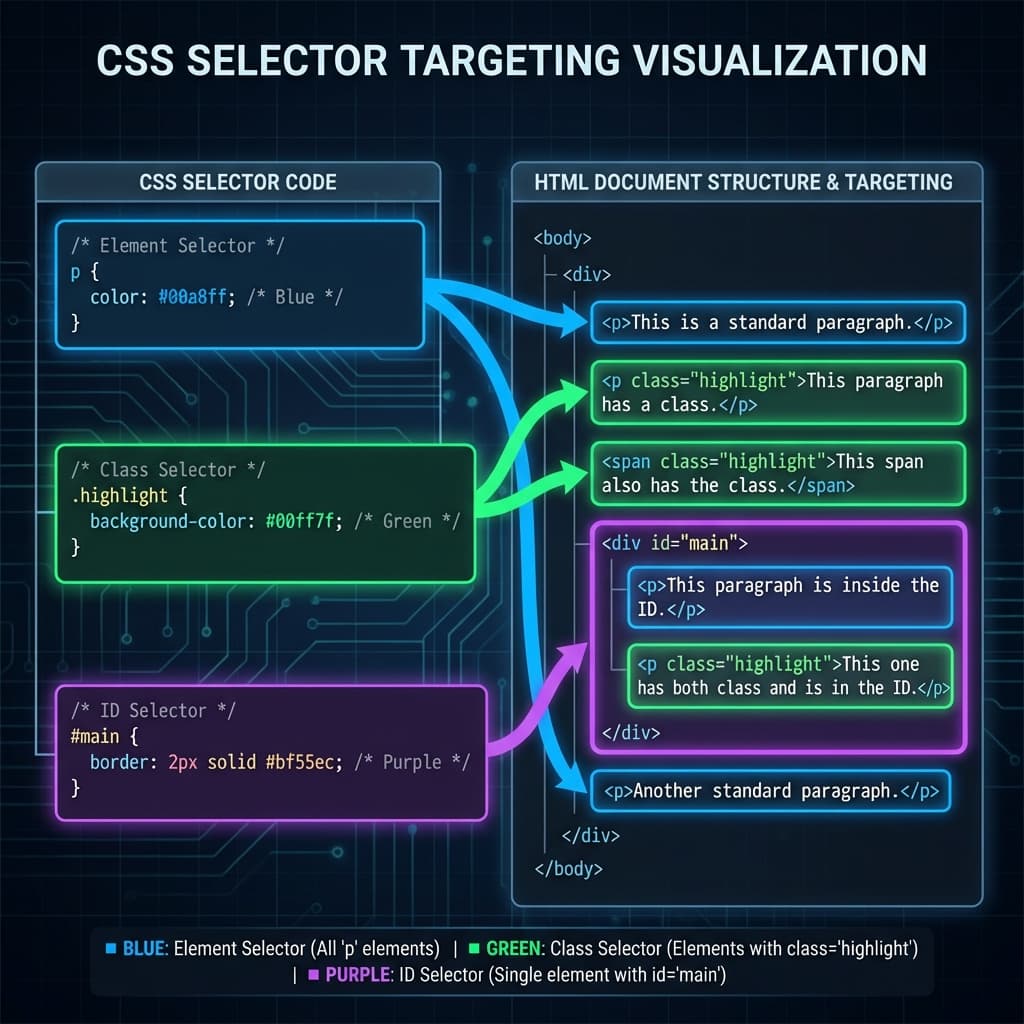
CSS Selectors 101: Targeting Elements with Precision
Master CSS selectors from basics to advanced. Learn element, class, ID, group, and descendant selectors with practical examples. Build a solid foundation for styling web pages.
11 min read
- JavaScript
- Async
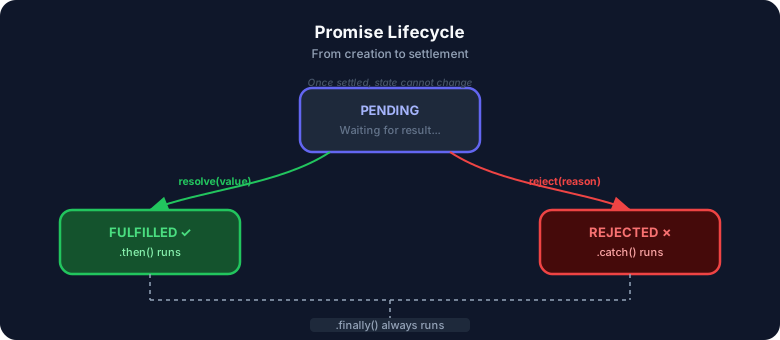
JavaScript Promises : The Complete Guide to Async Code
Master JavaScript Promises from scratch — lifecycle, .then()/.catch()/.finally(), all static methods (all, allSettled, race, any), real-world examples, visual diagrams, and hands-on assignments. Written from 4+ years of full-stack development experience.
17 min read
- JavaScript
- Web Development
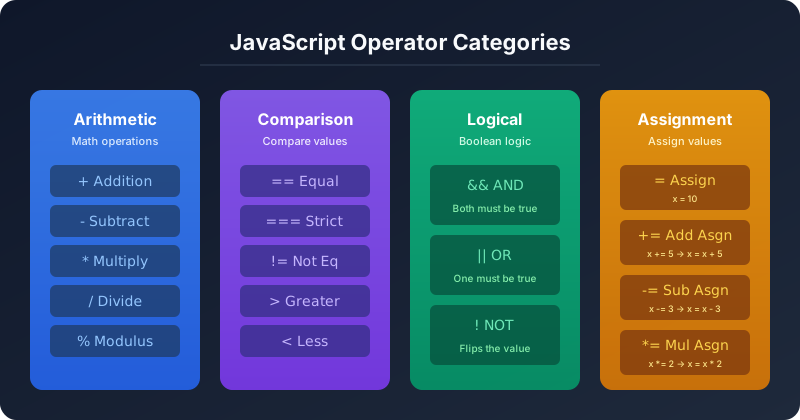
JavaScript Operators — The Basics You Need to Know
Master JavaScript operators — arithmetic, comparison, logical, and assignment — with real-world examples, visual diagrams, truth tables, and hands-on assignments. A practical guide from 4+ years of full-stack development.
19 min read