Git for Beginners: Basics and Essential Commands
Learn Git from scratch—what it is, why developers use it, core concepts (repository, commit, branch, HEAD), and essential commands. A practical guide with diagrams and a real workflow.
9 min read
Share
- What is Git?
- Why Git is Used
- Git Basics and Core Terminologies
- Repository (Repo)
- Working Directory
- Staging Area (Index)
- Commit
- Branch
- HEAD
- Quick Reference Table
- Common Git Commands
- 1. git init – Start a New Repository
- 2. git status – See What Changed
- 3. git add – Stage Changes
- 4. git commit – Save a Snapshot
- 5. git log – View History
- Other Essential Commands (Quick Reference)
- A Basic Developer Workflow Using Git (From Scratch)
- Step 1: Create and Initialize a Repo
- Step 2: Add a File and Make the First Commit
- Step 3: Change a File and Commit Again
- Step 4: Check History
- Suggestions for Beginners
- Summary
If you've ever renamed a file to project_final_v2_REALLY_FINAL.zip or lost track of which code change broke the build, you need Git. As a full-stack developer who's shipped code for years, I can tell you: Git isn't optional—it's the foundation of how modern teams ship software.
This guide introduces Git as a distributed version control system in plain terms, walks through core concepts, and gives you a real workflow from scratch. No fluff—just what you need to get productive.
What is Git?
Git is a distributed version control system (DVCS). In simple terms: it tracks every change you make to your files over time and lets you (and your team) work on the same codebase without stepping on each other's toes.
Think of it like this
If your project folder is a rough draft on paper... Git is a time machine that keeps every version, lets you branch into alternate storylines, and merge them back when you're ready.
Unlike old-school tools that stored only the latest version on a central server, Git gives every developer a full copy of the project history. That means you can commit, branch, and experiment offline—and sync when you're ready.
| Feature | What it means |
|---|---|
| Distributed | Every clone has the full history; no single point of failure |
| Version control | Every change is recorded with who, when, and why |
| Branching | Create parallel lines of work and merge them safely |
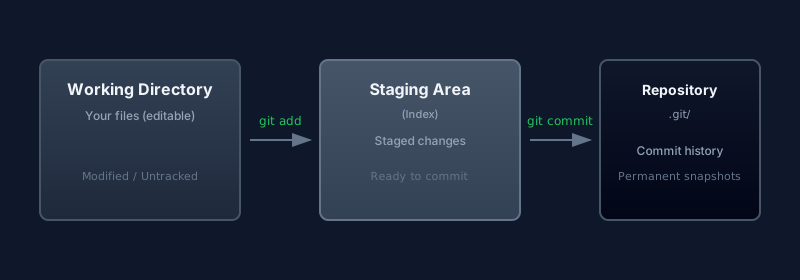
Git: Working Directory, Staging Area, and Repository flow
Why Git is Used
Teams and solo developers use Git because it solves real problems:
- History – Revert to any previous state. Broke something? Go back.
- Collaboration – Multiple people work on the same repo; Git merges changes and highlights conflicts.
- Branching – Try risky features in a branch; only merge when they're ready.
- Backup – Push to GitHub, GitLab, or Bitbucket and your code (and history) is backed up and shareable.
- Industry standard – Most jobs expect Git. Open source, startups, and enterprises all use it.
From the trenches
In 4+ years of full-stack work, I've never seen a professional team ship without version control. Git is the default. Learning it early pays off in every interview and every project.
Git Basics and Core Terminologies
Before running commands, you need a clear mental model. Here are the terms you'll use every day.
Repository (Repo)
A repository is the project folder that Git is tracking. It contains your files plus a hidden .git directory that holds all history, branches, and metadata.
my-project/
├── src/
├── package.json
└── .git/          # Git's database – don't delete this!
Working Directory
The working directory is the folder you see and edit—your normal project files. When you change a file here, Git sees it as modified until you stage and commit.
Staging Area (Index)
The staging area (or index) is a middle layer between your working directory and the repository. You choose which changes go into the next snapshot by adding them with git add. Nothing is committed until it's staged.
Commit
A commit is a snapshot of your project at a point in time. Each commit has a unique ID (hash), an author, a timestamp, and a message. The history of your project is a chain of commits.
Branch
A branch is a movable pointer to a commit. By default you have main (or master). You create new branches to try features; when ready, you merge them back.
HEAD
HEAD is Git's pointer to the commit you're currently on. When you switch branches, HEAD moves to the tip of that branch. It answers: "Where am I in history right now?"
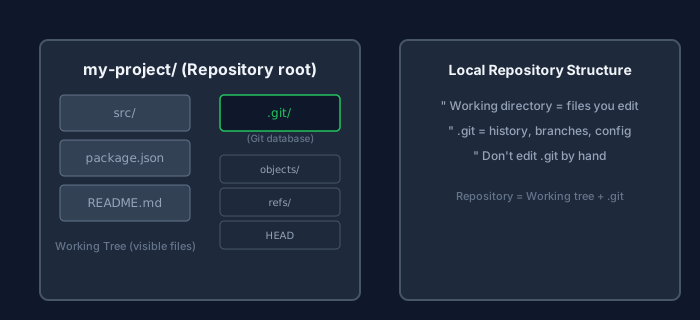 Local Git repository structure: .git folder, working tree, and key concepts
Quick Reference Table
| Term | Meaning |
|---|---|
| Repository | Project + full history (including .git) |
| Working directory | The files you see and edit |
| Staging area | What will go into the next commit |
| Commit | A saved snapshot with message and hash |
| Branch | A line of commits (e.g. main, feature/login) |
| HEAD | Current commit / branch you're on |
Don't edit .git by hand
The .git folder is Git's database. Deleting it removes all history and
branches. Edit your project files; let Git manage .git.
Follow one edit through all four places Git keeps it:
1/4
Common Git Commands
These are the commands you'll use constantly. Examples assume you're in a project directory.
1. git init – Start a New Repository
Creates a new Git repo in the current folder (adds the .git directory).
mkdir my-app
cd my-app
git init
Output:
Initialized empty Git repository in /path/to/my-app/.git/
2. git status – See What Changed
Shows which files are modified, staged, or untracked. Run this often.
git status
Example output:
On branch main
Changes not staged for commit:
  modified:   src/App.js
Untracked files:
  README.md
3. git add – Stage Changes
Moves changes from the working directory to the staging area.
# Stage a single file
git add src/App.js

# Stage all changes in current directory
git add .

# Stage all modified/new files in the repo
git add -A
Staging in chunks
Use git add file1 file2 to stage only what you want in the next commit. It
keeps commits focused and easier to review and revert.
4. git commit – Save a Snapshot
Creates a new commit from whatever is in the staging area. Always use a clear message.
git commit -m "Add user login form"
Best practice: Use present tense, be specific.
❌ fixed stuff
✅ Fix null check in login validation
5. git log – View History
Shows the commit history—who changed what and when.
# Default log (full messages)
git log

# One line per commit
git log --oneline

# Last 5 commits
git log -5 --oneline

# With graph for branches
git log --oneline --graph
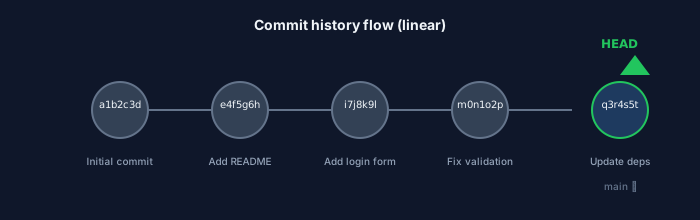 Commit history flow: linear and branched commits with HEAD
Other Essential Commands (Quick Reference)
| Command | Purpose |
|---|---|
git diff | Show unstaged changes (working dir vs staging) |
git diff --staged | Show staged changes (staging vs last commit) |
git branch | List branches; git branch feature/x creates one |
git checkout -b feature/x | Create and switch to a new branch |
git clone <url> | Copy a remote repo to your machine |
git pull | Fetch and merge from remote |
git push | Send your commits to remote |
A Basic Developer Workflow Using Git (From Scratch)
Here's a minimal workflow: create a project, make changes, and save snapshots. Beginner-friendly and practical.
Step 1: Create and Initialize a Repo
mkdir my-first-git-project
cd my-first-git-project
git init
Step 2: Add a File and Make the First Commit
echo "# My Project" > README.md
git status
git add README.md
git commit -m "Add README"
Step 3: Change a File and Commit Again
echo "## Getting Started" >> README.md
git status
git add README.md
git commit -m "Add Getting Started section"
Step 4: Check History
git log --oneline
You should see two commits. That's your first Git workflow: edit → stage → commit.
Daily loop
Most days you'll repeat: git status → git add (what you want) → git commit -m "message" → optionally git push. Master this loop first;
branching and remotes come next.
Suggestions for Beginners
- Commit often – Small, logical commits are easier to understand and revert.
- Write clear messages – Future you (and your team) will thank you.
- Use .gitignore – Ignore
node_modules/,.env, build outputs so they never get committed. - Learn one workflow first – Get comfortable with init, add, commit, log before diving into branches and remotes.
- Push to a remote – Use GitHub or GitLab so your work is backed up and shareable.
Suggested next steps
- Add a remote:
git remote add origin <repo-url> - First push:
git push -u origin main - Create a branch:
git checkout -b feature/your-feature - Merge after review:
git checkout mainthengit merge feature/your-feature
Summary
- Git is a distributed version control system: it tracks changes and gives everyone a full copy of history.
- Core ideas: repository, working directory, staging area, commit, branch, HEAD.
- Essential commands:
git init,git status,git add,git commit,git log. - Basic workflow: edit files →
git add→git commit→ repeat; then push to a remote when you're ready.
Once this feels natural, move on to branching, merging, and pull requests. Git for beginners is about building the habit: small commits, clear messages, and a reliable history.
Questions about Git or version control? Drop a comment or reach out on Twitter @srtenginamath.

Written by Sharanayya R Tenginamath
Software Engineer at McD BERL with 4 years building scalable full-stack applications with React.js, Next.js, TypeScript, FastAPI and Python. Available to join from Oct 12, 2026.
Related articles
- JavaScript
- Async
JavaScript Promises : The Complete Guide to Async Code
Master JavaScript Promises from scratch — lifecycle, .then()/.catch()/.finally(), all static methods (all, allSettled, race, any), real-world examples, visual diagrams, and hands-on assignments. Written from 4+ years of full-stack development experience.
17 min read
- JavaScript
- Web Development
JavaScript Operators — The Basics You Need to Know
Master JavaScript operators — arithmetic, comparison, logical, and assignment — with real-world examples, visual diagrams, truth tables, and hands-on assignments. A practical guide from 4+ years of full-stack development.
19 min read
- JavaScript
- Web Development
Understanding Variables and Data Types in JavaScript — The Complete Beginner's Guide
Learn JavaScript variables (var, let, const) and data types with real-life analogies, clear code examples, comparison diagrams, and hands-on assignments. A practical guide written from 4+ years of full-stack development experience.
15 min read